Enable Cost Allocation Tags to differentiate project based billing

When running in an AWS public cloud environment, many times there is a need to dissect the billing across different projects for accounting and accrual purposes. AWS provides a mechanism to aggregate related platform costs using a feature known as Cost Allocation Tags. With this feature you can designate Tags on your AWS resources to track costs on a detailed level.

From the AWS Documentation:

Activating tags for cost allocation tells AWS that the associated cost data for these tags should be made available throughout the billing pipeline. Once activated, cost allocation tags can be used as a dimension of grouping and filtering in Cost Explorer, as well as for refining AWS budget criteria.

For example, to view cost allocation based on various project resources in your AWS account, you can tag these resources (EC2 instances, S3 buckets, etc) with a tag named “Project”. Next the Project tag can be activated as a Cost Allocation Tag. From then on AWS will include this tag in associated cost data to allow for filtering based in the tag in Cost Explorer reports.

Let’s walk through the steps of setting this up:

  1. Log in to your AWS Management Console
  2. Tag all the resources with a Tag Key as Project and Value as per your various projects. Understand that this may not be possible for every resource type.
  3. Navigate to My Billing Dashboard > Cost Allocation Tags
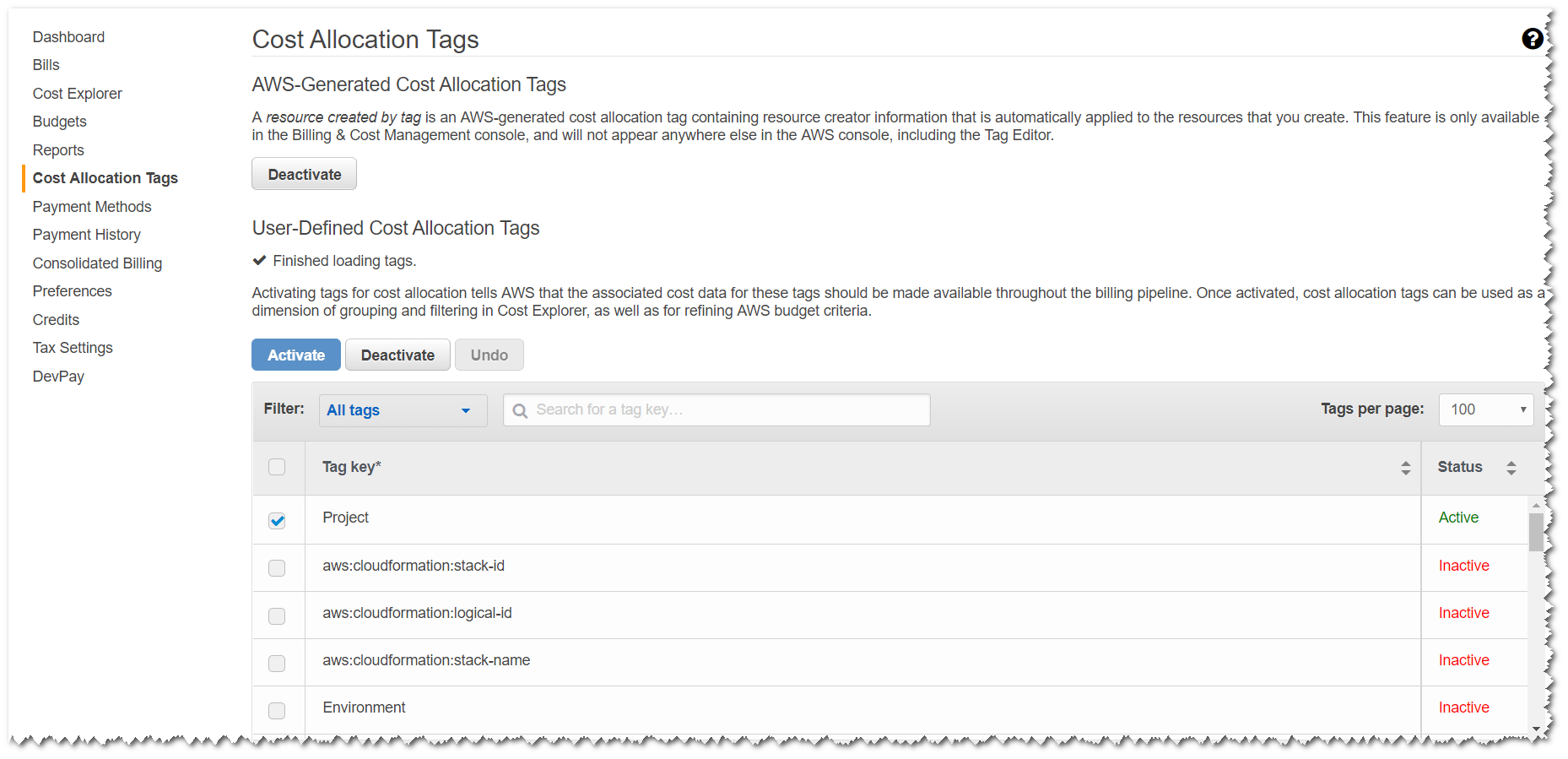
  4. Under User-Defined Cost Allocation Tags section, select the tag “Project” and click the “Activate” button.

Fig-1

Once a tag is activated it will take around 24 hours for billing data to appear under this tag.

Next, to view the costs under a project, do the following:

  1. Log in to your AWS Management Console
  2. Navigate to My Billing Dashboard > Cost Explorer
  3. Click “Launch Cost Explorer”
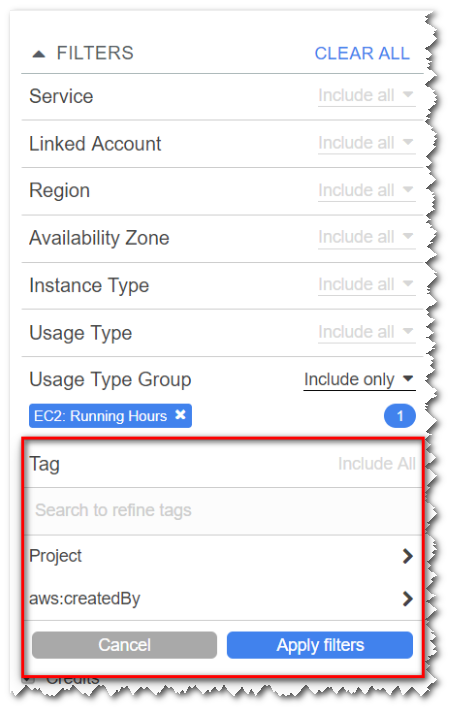
  4. On the right side of the page under Filters section, click the Tag filter and select the Project tag, then the Tag Value to filter cost by the Project

2018-01-05_150042

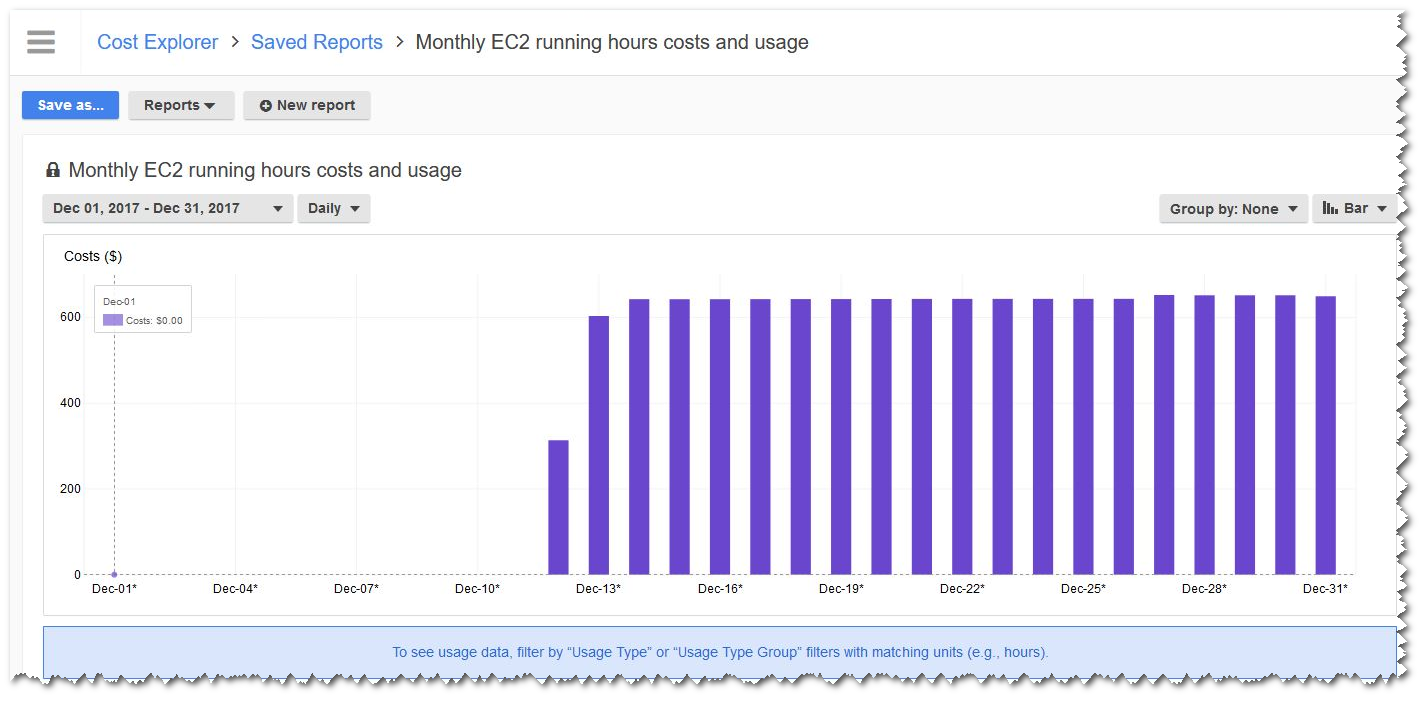
As you can see from the screenshot below, now we can see exactly how much each project is costing per day (or month, if selected)

2018-01-05_145028

Some important points to consider:

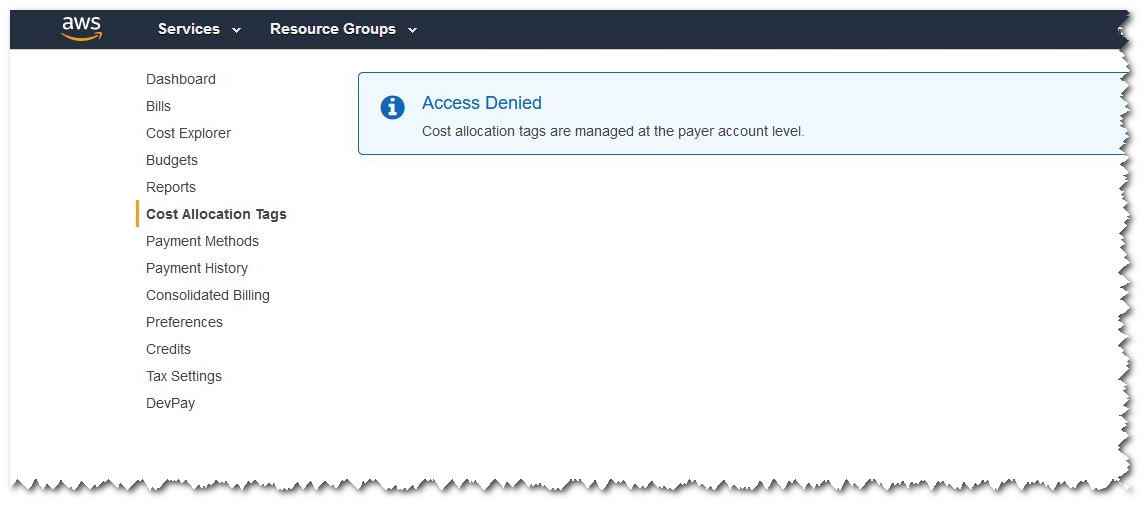
  • Cost allocation tagging is “managed” via the master billing account at the root of the AWS organization. If your account is part of an organization you will have to contact this account administrator to enable the cost allocation tags.2018-01-05_145000
  • The error message in the previous screenshot will always appear in tenancies not allocated the management permission.
  • Some resources notably bandwidth charges cannot be tagged and thus cannot be accounted under cost allocation tagging. A common pattern in such cases is to calculate percentage cost on each project and cost the unaccounted charges based on this percentage.

One line Chrome installer in Windows

It is often said that Internet Explorer is the best browser to Download Chrome :) Well you cna use Powershell as well:

$LocalTempDir = $env:TEMP; $ChromeInstaller = "ChromeInstaller.exe"; (new-object    System.Net.WebClient).DownloadFile('http://dl.google.com/chrome/install/375.126/chrome_installer.exe', "$LocalTempDir\$ChromeInstaller"); & "$LocalTempDir\$ChromeInstaller" /silent /install; $Process2Monitor =  "ChromeInstaller"; Do { $ProcessesFound = Get-Process | ?{$Process2Monitor -contains $_.Name} | Select-Object -ExpandProperty Name; If ($ProcessesFound) { "Still running: $($ProcessesFound -join ', ')" | Write-Host; Start-Sleep -Seconds 2 } else { rm "$LocalTempDir\$ChromeInstaller" -ErrorAction SilentlyContinue -Verbose } } Until (!$ProcessesFound)

Get all updates installed on a Windows system

Windows patching is so much more complicated than Linux (yum install -y :)

Here is a script to list all applied patches on a Windows ssystem:

$Session = New-Object -ComObject "Microsoft.Update.Session"
$Searcher = $Session.CreateUpdateSearcher()
$FormatEnumerationLimit=-1
$historyCount = $Searcher.GetTotalHistoryCount()

$Searcher.QueryHistory(0, $historyCount) | Select-Object Title, Description, Date, @{name="Operation"; expression={switch($_.operation)
{

        1 {"Installation"}; 2 {"Uninstallation"}; 3 {"Other"}

}}} -ExpandProperty Title > C:/Temp/ListOfWindowsUpdates.txt

Probation review...

Feedback is of utmost importance, how will you know if yo uare i nthe right direction without feedback? My company gave me a questionnaire to gather the feedback:

  1. When you think back on your last few months at <Company_Name>, what went well, and what accomplishments are you proud of?
  2. In reflection, what went not so well for you?
  3. And now, with the wonderful benefit of hindsight what would you do differently next time? What could <Company_Name> have done to assist further?
  4. What support do you need from us this year?
  5. In the year ahead, what are your TOP 3 areas of focus and how do you believe these will make a difference to you and <Company_Name>?
  6. Your Training and Development Plan for 2017-2018?